Building low-level software with only coding agents

In five days over the holiday break, I built a Rust-based image compressor.
I wanted to see how far I could go using only coding agents. I did not write any code by hand. After 520 agents, 350M tokens, and $28711: One agent run refers to a single conversation inside Cursor (locally or on the web). The majority of the 350M tokens are cached, due to Cursor using prompt caching (for Codex or Opus models). The spend was about 70% Opus, 30% Codex due to their API pricing. Pricing and usage were measured using the public Cursor APIs., I can now say… extremely far.
My library, pixo, has zero runtime dependencies. All algorithms were implemented from scratch. It achieves performance close to a 30-year-old highly optimized C/Assembly library (libjpeg).
I didn’t expect this to work, and then was continually shocked by how ambitious I could be. I started with the Rust library, and then compiled to WebAssembly for a web app. There’s even a CLI and comprehensive guides on how everything works. Plus, 900+ tests with 86% coverage. No slop or vibes here.
Here are a few interesting things coding agents did for me:
- Created benchmarks against similar tools, found performance gaps, and then fixed them
- Optimized the WASM binary, looking up the right config/flags to use, shrinking the size
- Measured code coverage, found gaps, and then wrote tests based on the missing coverage
- Found public-domain images to scaffold a comprehensive test suite
- Researched compression specs and RFCs to validate the correctness of all tests
- Added CI for linting, testing, and generating WASM binaries
Let me first show you what I built (try it out here). Here’s my SvelteKit web app that accepts PNG or JPEG images. It loads the pixo library as a WASM binary. It can optimize most images in under a second, completely in the browser. You don’t have to upload anything to a server.
You can choose between different presets (faster or slower) and resize images. It supports dropping in many images, and when finished, you can download them all in a .zip file. You can slide between the before and after and even zoom in to inspect the pixel differences. Pretty cool!
Finding the limits of coding agents
In my last post, I talked about migrating the Cursor website from a CMS to raw code and Markdown. My main point was that the cost of a bad abstraction is very high when AI can trivially produce code now. I did the entire migration within the Cursor Ultra plan ($200/mo).
However, this was in a domain I was comfortable with. Some people were skeptical I could get the same results if I didn’t have the prior knowledge of React and Next.js.
I wanted to try something really ambitious. I thought AI and coding agents would struggle with:
- Lower-level code like Rust (vs. TypeScript or Python)
- Highly complex computer science topics (e.g. compression algorithms)
Image compression felt like the right opportunity to try and debunk those myths.
There’s 70 years of clever algorithms and optimizations to compress data as small as possible. Almost everything we do on computers relies on compression: every image loaded on the web, every video call you’ve made, every packet sent over the network, the text you’re reading right now… even the file system itself.
There are many existing compression libraries and codecs, some more than 30 years old! My crazy ambitious idea was to try and build a Rust library that had zero runtime dependencies, implementing all of the underlying algorithms and optimizations from scratch. And I wanted to do it all with coding agents, not writing any code by hand.
This ended up being almost 38,000 lines of code (with over 50% of that being tests). All of that in five days, which feels superhuman and previously impossible. More on the results later.
Long-running agents
Most software engineers are not yet coding primarily with agents, contrary to what you might see online. The silent majority are still learning and evolving for this new world.
Those who have adopted coding agents are using products like Cursor to research, debug, and add new features. These tasks usually take somewhere between 1 and 30 minutes.
Very few developers have updated their mental model to consider long-running agents. If you’re reading this post, you’re likely further ahead than most.
Coding with AI looks dramatically different today versus even a few months ago.
- Models have improved. Just a year ago, models were barely agentic. They struggled to call tools and would frequently hallucinate code. Not only do the latest models have smarter world knowledge, but they’re also better at following instructions and tool calling.
- Coding agents have improved. These improved models are also being used better in products like Cursor and other coding agents. There are many small details that add up: allowing the model to self-summarize and keep going past the initial context window, pruning the size of tool definitions and responses to save on context usage, dynamically loading context from the file system, and more.
- Awareness and adoption have increased. Developers adopting AI coding products are learning the strengths and limits of the current tools. They often start with a detailed plan before generating code, which leads to significantly better results. I expect many more developers to write code with AI next year.
Today, agents and the latest models can easily run for an hour without intervention. You can ask them to achieve more complicated tasks, usually with a plan, and they will get it mostly right from the start.
My longest Cursor agent ran for 3 hours on this project (with GPT-5.1-Codex-Max). Many agents ran for multiple hours. If you haven’t already considered a world where coding agents can run autonomously for days, you should expect it to become a reality in the next year.
Planning, building, refactoring
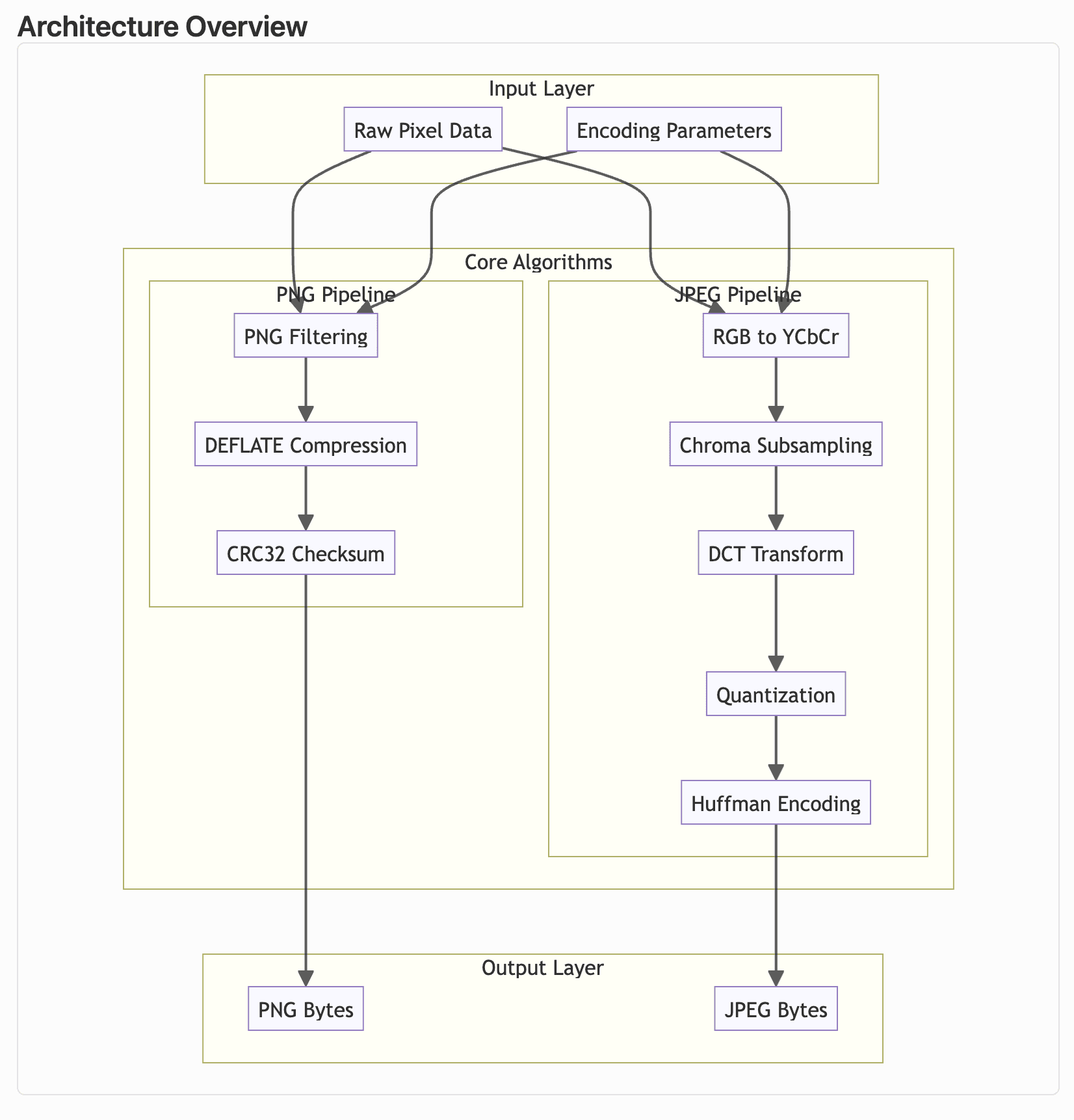
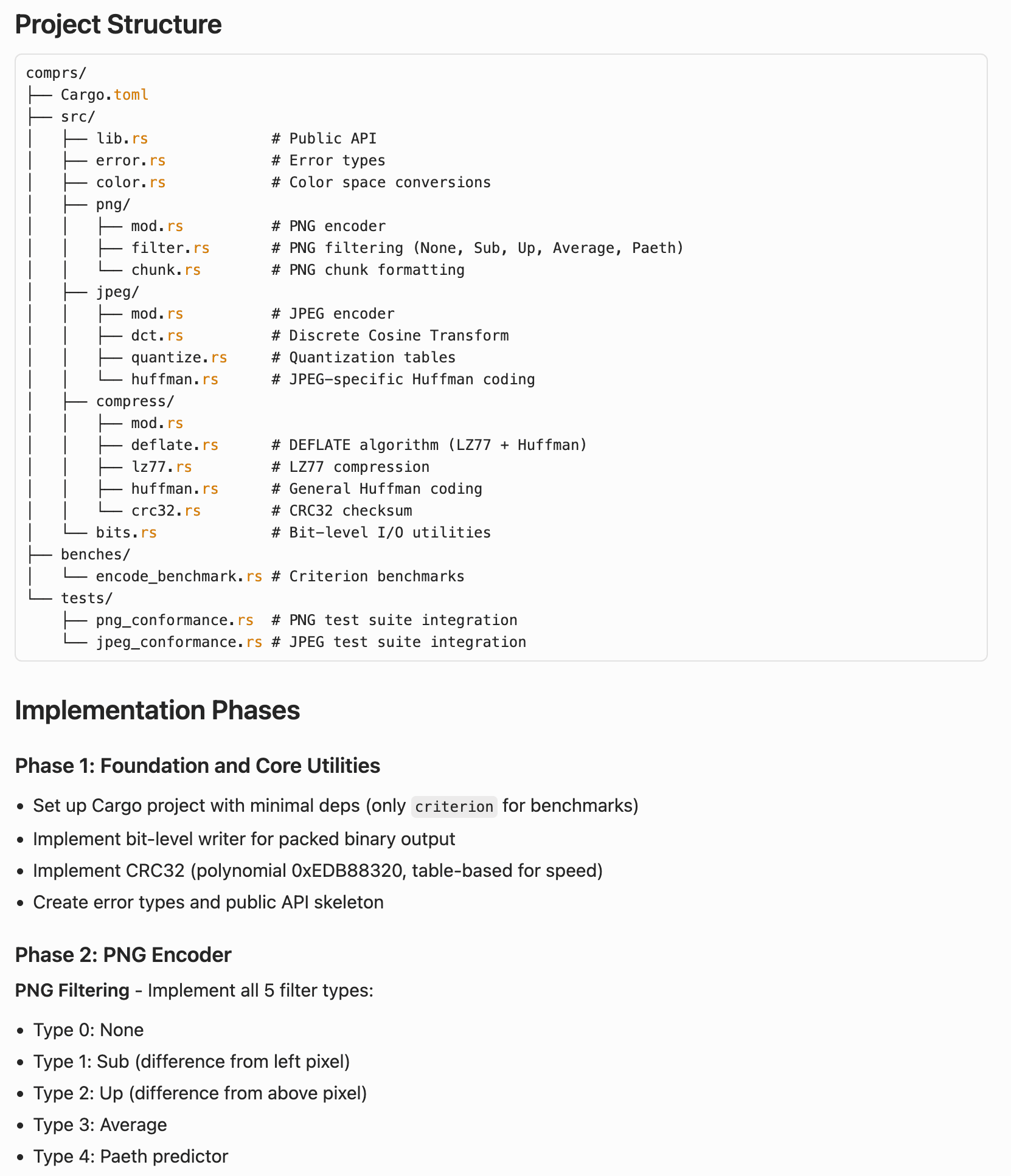
Here’s the initial plan I started pixo with. Plan mode in Cursor is one of the most underrated features. Even with the models getting better at instruction following, the UX of plan mode is still helpful. I also enjoy that it can generate Mermaid diagrams to visualize the architecture.
Throughout the project, I flipped between Opus 4.5 and GPT-5.1-Codex-Max. Both performed very well, although I used them differently. For example, Codex performed better for long-running tasks, while Opus was significantly better at writing.
A large portion of this project was built while I was away from my keyboard. I would go back and forth with Cursor to build a plan, and then start the agent running in the cloud, mostly with Codex.
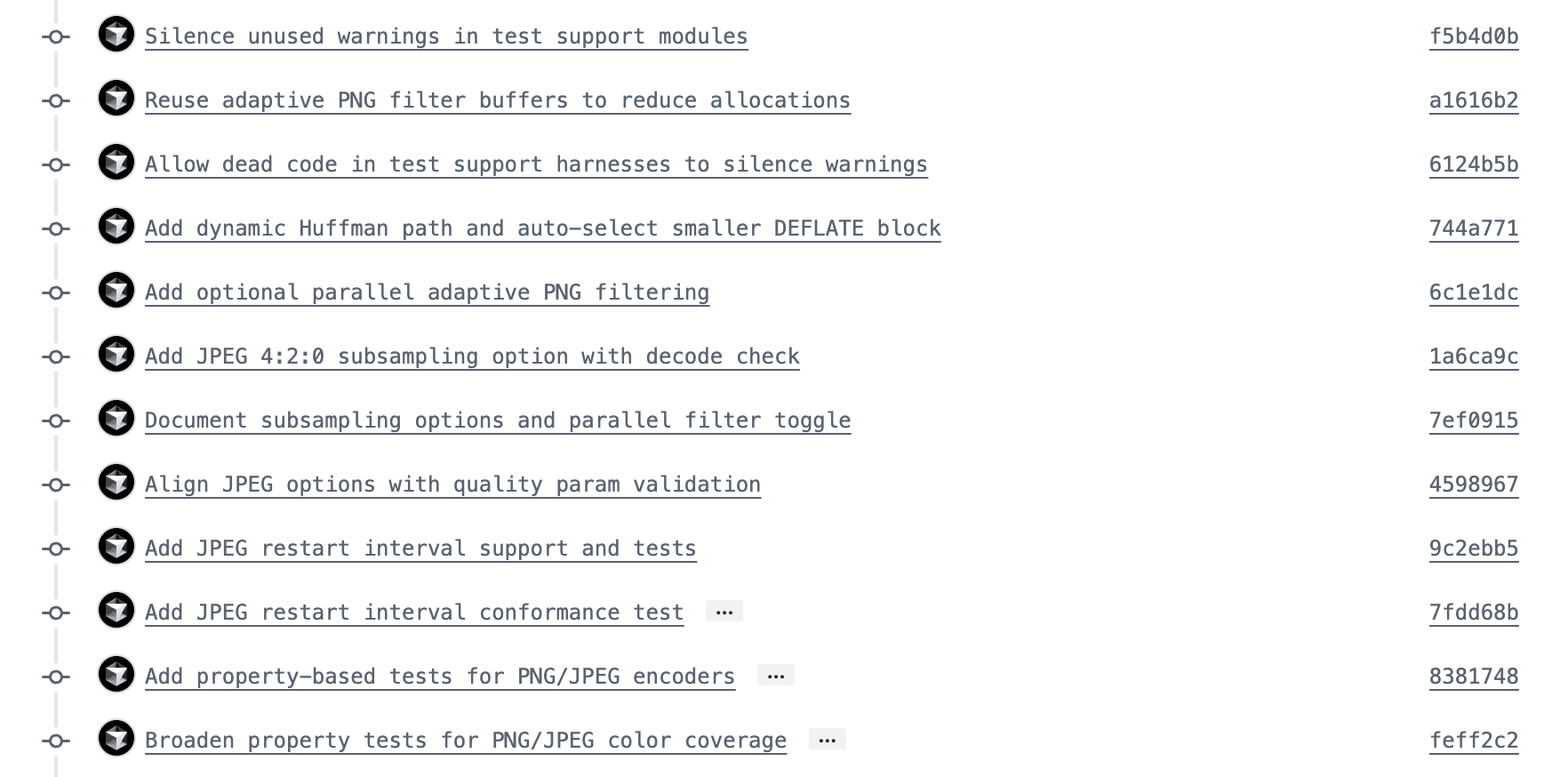
Cursor then spins up a virtual machine, clones my repo, and starts working on the task. As it makes progress, it leaves commits and verifies its work.
For example, here’s one of the first PRs I made. I started this from my phone, and then went and read some books to my daughter. I came back a few hours later and merged it.
Now you might be thinking: how do you plan and build this way without ending up with broken code? You need a way for the models to verify their work is correct.
If you give coding agents verifiable outputs, like tests, lints, and benchmarks, they can learn from their mistakes and continue working until things are correct. Early in the project, I asked Cursor to add CI to format, lint, and test the codebase. This now runs on every PR, so agents can make sure they’re not regressing.
Here’s a short list of things agents could now do for me:
- Add comprehensive documentation about the codebase (1, 2, 3, 4)
- Add benchmarks (1) and then grind to improve performance (1, 2, 3, 4)
- Build a web app from scratch to use the WASM binary with tests (1, 2)
- Measure code coverage (1) and grind to add tests (1, 2, 3, 4)
- Implement complex new features from scratch (1, 2, 3)
- Refactor and improve APIs and code quality (1, 2, 3)
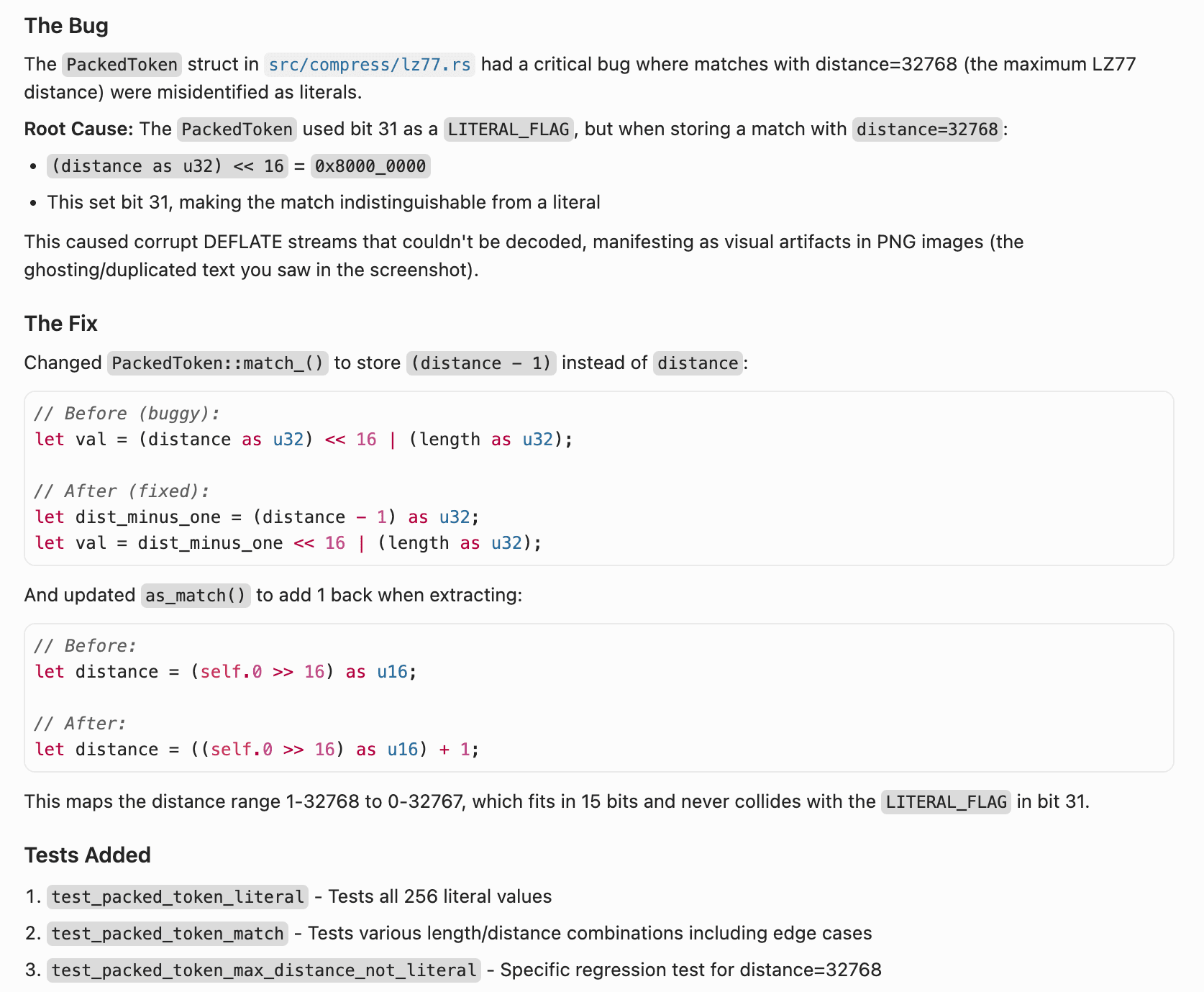
Cursor also helped me find and fix tricky bugs. While manually testing images, I noticed some visual artifacts from the compression that seemed off. I took some screenshots and fed them back to the agent, working back and forth to debug this issue. It even added regression tests to prevent it from happening again!
After I made the repo public, someone opened an issue with a suggestion for adding image resizing. Because I invested in verifiable outputs (tests, types, lints), it’s now easy to add new features.
I created a plan to explore what the API shape would look like for resizing. I wanted to make changes at the Rust level, then expose a new WASM API, and consume it in the web app. After finishing the plan, Cursor was able to get a working version in one shot.
Before merging the PR, I improved performance, tweaked the design, and added more test coverage. You can read the plan here and the final PR.
It’s worth noting that I did review most of the code and tested changes both manually and with automated tests. I also had Bugbot review all my PRs (example).
Benchmarks and comparisons
I made a detailed benchmark against other similar tools22: If you see any issues with the benchmarks, please let me know. I'm happy to make updates and amendments to this post. My goal is not to boast about how good the library is. I don't actually expect that people will use it over the established solutions. If you leave an issue on the repo, I will get it fixed! as well as a codebase comparison that looks at the amount of code and the test coverage.
Some interesting stats and takeaways:
pixois competitive with other libraries. My goal was to build a fast, zero-dependency library. It’s significantly smaller than other libraries, especially looking at their dependencies (e.g.libvipshas 194K LOC,mozjpegis 112K). I am sure a decent portion of that code contains valuable bug fixes and performance optimizations, so I’m not discounting it entirely, but this library is an experiment showing there are other options. I can fit this entire codebase in my head with very readable Rust code.- AI can help you write more tests. If you previously thought models would struggle with writing quality tests, it’s worth trying again. I was able to ask Cursor to read the specs for the formats and algorithms and then verify the correctness of the tests to ensure the library was working as expected. Write the tests first; if they fail, we know there’s a bug (bringing TDD back but better).
pixohas significantly more tests (900+) than other tools, which makes sense. It takes a ton of time to write 20,000 lines of tests. 86% coverage is good enough for me, but I could probably get the models to grind it out to 100% if I wanted. - Everything has trade-offs. Deciding to have zero dependencies is a trade-off. I could have easily pulled in one of the battle-tested libraries, like
libdeflate, which is 14K lines of C code. But this would then increase the size of my WASM binary, which slows down how quickly the web app becomes usable. At 159 KB,pixois tiny. Evensquooshwith PNG +mozjpegis ~933 KB. I’m okay with trading off slightly worse performance for size. There’s likely a lot more work to be done to match the thousands of lines of hand-tuned C/Assembly some of the other libraries have. Plus,pixois all-in-one: lossless PNG, lossy (quantized) PNG, lossy JPG, and image resizing.
Product matters more than ever
Writing code is no longer the bottleneck. What does that mean for software engineering?
You have to figure out the right things to build. For example, I needed to think through and decide things like:
- Q: What types of image formats do I want to support?
- A: I decided to focus on just PNG and JPEG. Adding WebP or AVIF or GIF or many other options would not be worth it for this experiment, and would add significant size to the LOC and WASM bundle.
- Q: How should I expose the library? CLI? Crate? Web app? All of them?
- A: My initial idea was just the library, but I was able to get increasingly ambitious as the project went on. Adding a CLI and web app was then trivial, and ultimately the web app is now my favorite part.
- Q: Should I handle just encoding or also decoding?
- A: I was originally thinking just encoding, but my first version needed to pull in an external dependency to handle decoding images for the CLI. It was surprisingly very easy to add decoding support later.
- Q: What configuration options should I expose in the API?
- A: The first version of the Rust API worked, but could be improved. I decided to refactor to better take advantage of the builder pattern, so you don’t accidentally mix up different positional arguments.
- Q: Should I trade off 1% smaller images for a 10% bigger WASM binary?
- A: I decided generally no for this library. I even did a few experiments where I had the agent grind out further compression gains, and then measured the LOC and WASM binary increase. Some of them I kept, some I discarded.
You need to design a well-engineered system. Could anyone who can write English have created this? Maybe, but I’m skeptical they would have landed on something well-engineered.
Becoming a generalist is more important than ever. You might not have known that Rust compiles to WASM, or that WASM can enable things like client image compression without server uploads. Having a CS foundation was incredibly helpful to understand some of the concepts this project used. It’s not like I write hex codes by hand, or do manual bit shifting, but I know they exist.
To illustrate my point, this was the first version of the web app that the models created. It is objectively “correct” but sloppy. It has the strange AI-generated blue tint everywhere, excessive text, and way too many knobs and buttons.
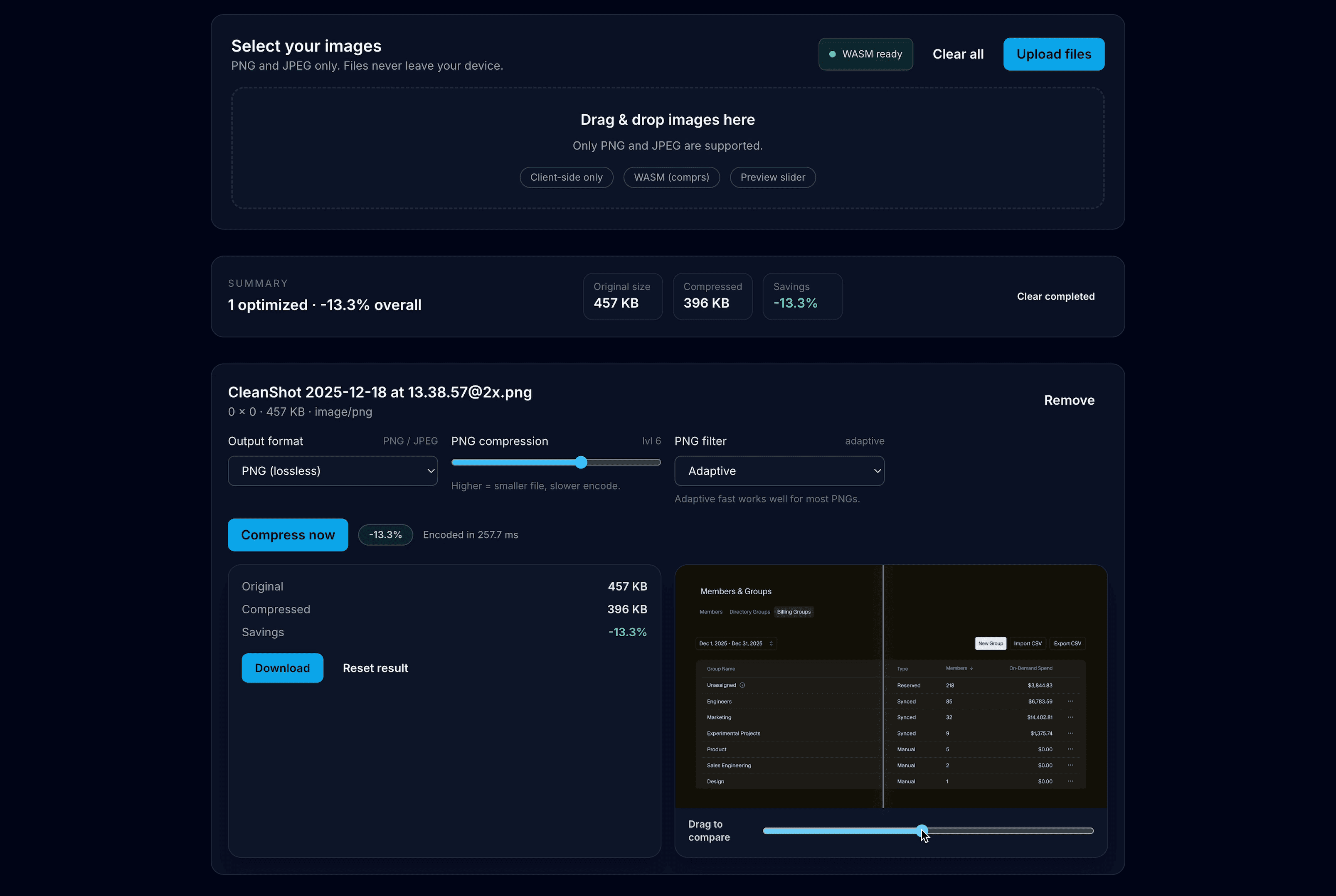
Especially when you look at other similar tools today. Most of the ones ranking high on Google are bloated with ads, extremely slow, and aren’t joyful to use. Some have way too many configuration options, others have none and pick lossy or lossless for you.
This is the top result on Google for “png compress” (yes, I know there are some great compression tools as well).
It takes about 30 seconds. How about 3 seconds instead?
Conclusion
I learned a lot about image compression, Rust, and WASM with this project. But most importantly, I had fun. Do I expect people to start using pixo? No, not really.33: This library wouldn't be possible without many of the public open-source libraries that Codex and Opus were likely trained on, and that the Cursor agents went and looked at to understand how they implemented different algorithms. Even if this is just personal software I use for my own photos, that’s fine with me.
There’s a lot of discussion online about workflows and strategies to optimize your use of coding agents and AI. My biggest advice here would be to not over-optimize. I started with zero custom rules. I only added a rules file later after the model got a few things wrong (e.g. used the wrong linting command, couldn’t remember how to generate the binary).
Similarly, workflows didn’t emerge until I played around in the repo for a while. Eventually I packaged up a few separate prompts I was making into a single /release command. But I only learned I needed this through building.
I highly encourage anyone who writes code today to try and build a project with coding agents. It will feel strange and very different from how you’ve created software in the past. But now is the time to re-skill and learn how to best take advantage of these new tools.
If you want to try out pixo, you can here, or read through the entire source code. I also recommend reading the guides if you want to learn more about image optimization and some of the compression tricks used. The performance optimizations doc is particularly fun.